

What it is & why it matters?
 Solid automatically builds and deploys your code to the cloud—no local terminal commands needed.
Key Benefits
Instant Preview
When you start a project, Solid creates and runs a preview app that lets you instantly see all changes
Shareable Links
Each preview app has its own unique link that you can share with teammates and stakeholders for real-time interaction
Auto-Refresh
After each successful Solid request, the Preview App automatically refreshes to reflect the latest changes
24/7 Availability
Each Preview App stays online for 24 hours after its latest update
Manual Controls
Refresh Preview Manually Button
 If you’ve made changes to the codebase either by hand or with tools (such as Cursor, Windsurf, and others), click Refresh Preview Manually to update the app running on the cloud.
Be aware that if you are non-technical, certain changes generated by Cursor, Windsurf, etc. may break the preview feature.
How to Use Manual Refresh
1
Make Changes
Edit your code using your preferred IDE or tools
2
Click Refresh
Find the “Refresh Preview Manually” button in your Solid interface
3
Wait for Update
The preview app will rebuild and deploy your changes automatically
4
Test Changes
Visit your preview app link to see the updated application
View Cloud Logs Button
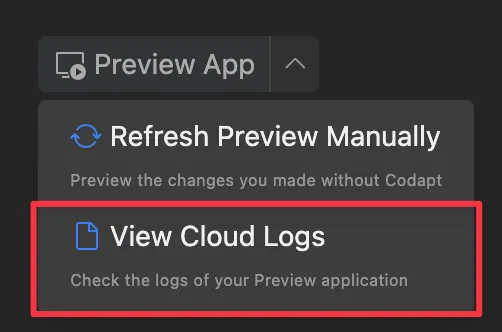 Clicking View Cloud Logs opens a live stream of your application’s server-side logs in the Solid dashboard. This feature enables real-time debugging and monitoring—letting you track requests, errors, and warnings as they occur in the cloud runtime.
What You Can Monitor
Server Requests
Server Requests
Track all incoming HTTP requests to your application, including response times and status codes
Error Messages
Error Messages
See detailed error messages and stack traces when something goes wrong
Database Operations
Database Operations
Monitor database queries, connections, and performance metrics
API Calls
API Calls
Track external API calls your application makes and their responses
Best Practices
Development vs Production: Just like in any real software, there’s always a separate database for development and for production.
For Development
- Use the preview app for testing and development
- Share preview links with team members for feedback
- Monitor cloud logs for debugging issues
For Production
- Deploy to your production environment when ready
- Use production database for live data
- Monitor production logs separately from development logs
Troubleshooting
If your preview app isn’t working as expected:- Check Cloud Logs: Look for error messages in the cloud logs
- Manual Refresh: Try clicking “Refresh Preview Manually”
- Restart Preview: Sometimes restarting the preview app helps
- Contact Support: If issues persist, reach out to our support team
Remember that preview apps are automatically cleaned up after 24 hours of inactivity to keep our infrastructure efficient. Simply make a new request to TrySolid to spin up a fresh preview app.